
How to Remove Formatting from Text
Learn how to remove formatting from text in Word, Google Docs, Notepad or any app, with shortcuts and a free online remover that keeps line breaks.
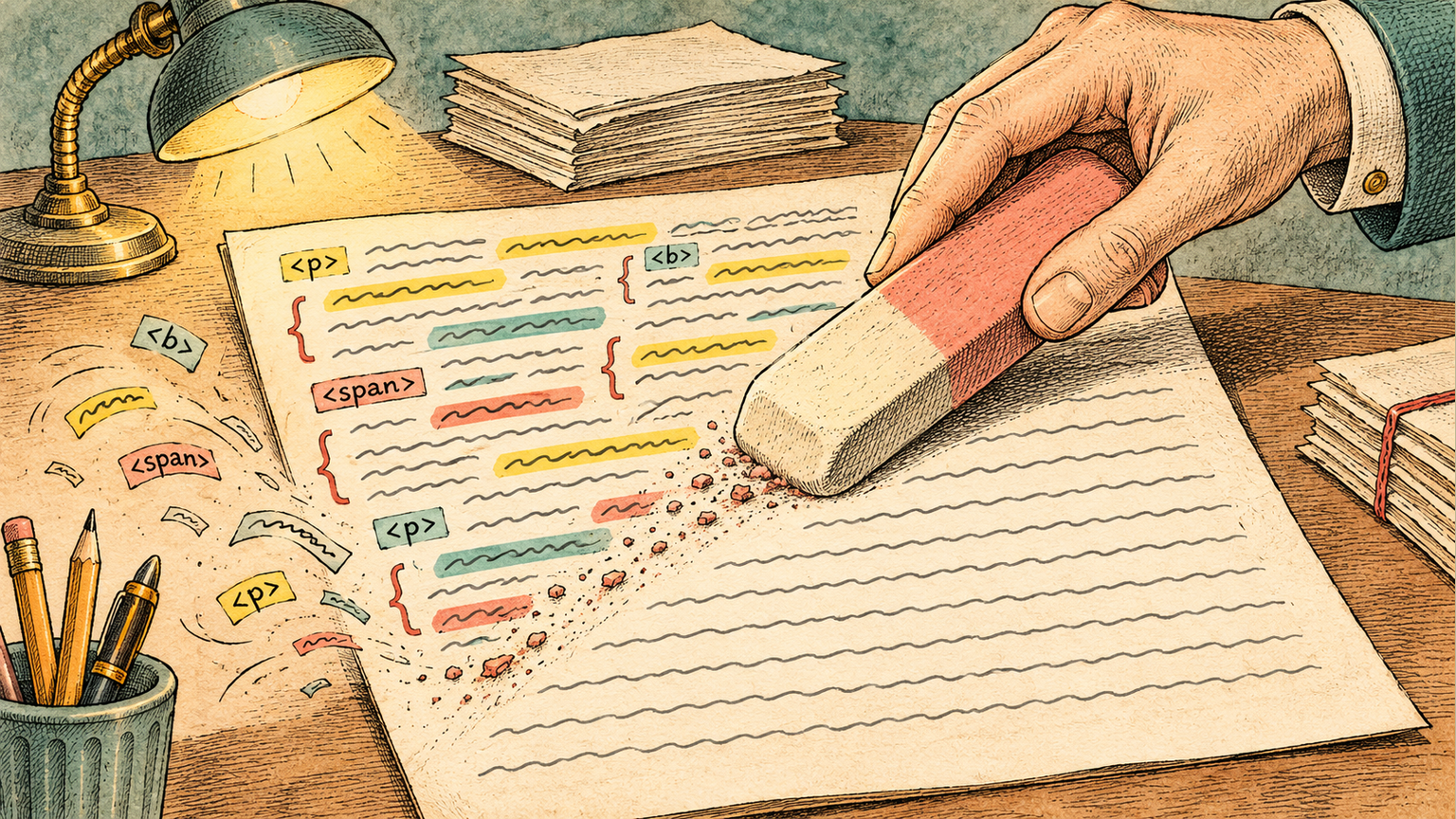
To remove formatting from text, paste it into a surface that only accepts plain text: an online format remover, the Notepad app on Windows, or even your browser's address bar. The formatting is stripped the moment the text lands there, and the words themselves stay intact. If you want the cleanup to keep your paragraphs and line breaks exactly as they are, paste into the Format Remover tool, press Clean, and copy the result back.
This guide covers every method worth knowing: the one-click tools, the keyboard shortcuts in Microsoft Word and Google Docs, the Notepad trick, and the extra step most guides skip, dealing with the invisible characters that survive normal cleanup. Pick the method that matches where your text is headed next.
What formatting actually is
Formatting is everything about the text that is not the text itself: the font, the size, the color, the bold and italic, the list markers, the indentation, and the alignment. Some of it is visible on screen. A lot of it is metadata you only notice when things go wrong.
Direct formatting and styles
Word processors track formatting in two ways. Direct formatting is applied by hand: you select words and hit bold, or change the font to Arial 14. Styles are named recipes, like Heading 1 or Normal, and the text inherits whatever the recipe says.
The difference matters because clearing one does not clear the other. Word's Clear All Formatting button resets both, but some apps and websites only peel off what they can see on the surface. That is why text you cleaned in one place can still carry odd spacing or fonts when it arrives somewhere else.
The HTML you cannot see
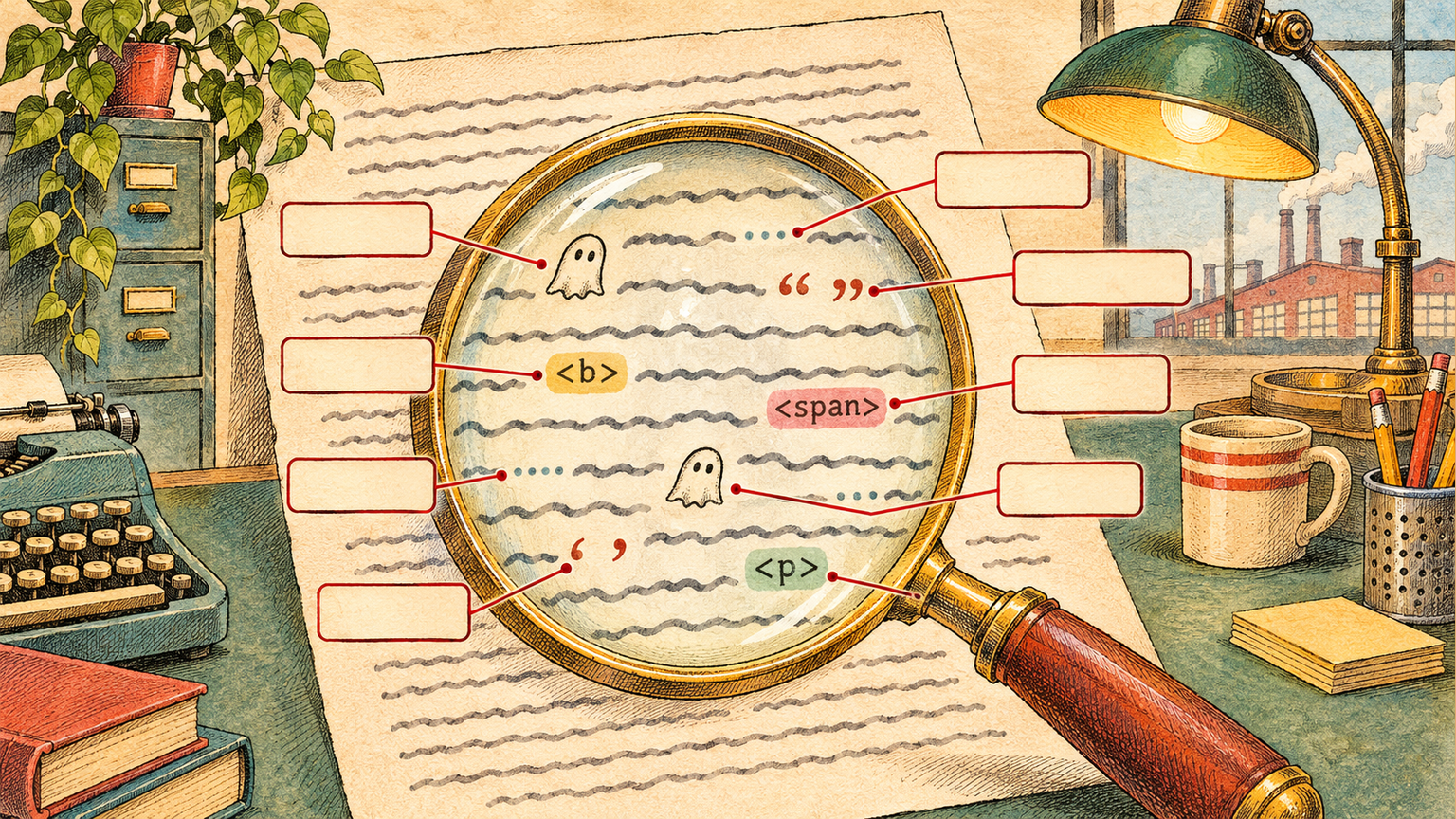
When you copy from a web page, an email, or Google Docs, the clipboard rarely carries plain characters. It carries markup: <span> wrappers with inline styles, font-family declarations, colored underline rules, <o:p> tags from Microsoft Office, and hundreds of non-breaking space entities. Paste that soup into a CMS, a plain-text field, or another document, and the junk comes with it. Some destinations sanitize it silently. Others render it, and you get mismatched fonts and mystery colors in the middle of your document.
Hidden characters
The sneakiest layer is invisible on every screen: zero-width spaces (ZWSP), non-breaking spaces (NBSP), soft hyphens, smart quotes, and em dashes pasted in as literal characters. You cannot select or delete what you cannot see, and most built-in clear-formatting commands ignore these entirely because as far as the app is concerned, they are ordinary characters, not formatting. They cause the classic symptoms: a search that should match comes up empty, a data import rejects a column, or line spacing looks wrong no matter what you do.
The fastest way: a free online format remover
If you want one method that works no matter where the text came from, paste it into a dedicated remover. It works like this:
- Open Format Remover in your browser.
- Paste the formatted text into the input box.
- Press Clean. The tool strips fonts, colors, HTML tags, inline styles, and hidden characters in one pass.
- Copy the clean text out and paste it wherever it belongs.
Two things make this method stand out from the app-specific shortcuts. First, it preserves your paragraph and line-break structure by default, so a five-paragraph answer stays five paragraphs instead of collapsing into one run-on block. Second, it runs entirely in your browser. The text never leaves your machine, which matters when you are cleaning up something confidential, like a contract clause or a client's draft.
There is also an optional toggle to flatten everything into a single line, useful when you are preparing text for systems that treat every newline as a record separator.
Remove formatting in Microsoft Word
Word gives you three routes, and the right one depends on whether the text is already in your document.
The Clear All Formatting button
Select the text, open the Home tab, and click the Clear All Formatting button in the Font group. It looks like an eraser in front of the letters AA. One click resets fonts, sizes, colors, bold, italics, and heading styles back to the document's default. Microsoft documents this button for Word, PowerPoint, and Publisher on their support page. The same button exists in Word for Mac, in the same place on the ribbon.
Keyboard shortcuts
Two shortcuts cover almost everything the button does on Windows:
- Ctrl + Space clears character-level formatting: bold, italic, underline, font, size, and color.
- Ctrl + Q clears paragraph-level formatting: indentation, spacing-before-and-after, and alignment.
Use them together and the selection lands back at plain body text. On the Mac, reach for the ribbon button, since the shortcuts differ by keyboard layout and Word version.
Paste without formatting in the first place
If the text has not been pasted yet, you can skip the cleanup step entirely. Word's paste menu (the small clipboard icon that appears right after pasting) offers Keep Text Only. To make that the default, go to File > Options > Advanced > Cut, copy, and paste and set the default paste behavior to keep text only for the scenarios you use most.
Remove formatting in Google Docs
Docs keeps it to one shortcut: select the text and press Ctrl + \ (Cmd + \ on a Mac). That is the same action as Format > Text > Clear formatting, and it resets the selection to the document's default font and weight.
For pasting, Ctrl + Shift + V pastes without formatting from the start. Chrome and most Chromium-based apps honor the same shortcut in any rich text editor, so it is worth committing to memory. One caveat: Docs' clear-formatting command does not touch hidden characters. A zero-width space copied out of a chat window will survive Ctrl + \ and keep breaking your find-and-replace.
The Notepad trick (and the address bar hack)
Before dedicated tools existed, everyone used a plain-text app to strip formatting. It still works.
Windows: paste into Notepad, press Ctrl + A then Ctrl + C, and close without saving. Notepad has no concept of bold, fonts, or styles, so what comes out is guaranteed plain text, line breaks included.
Quick one-liner: paste into your browser's address bar, then select all and copy. The address bar only holds plain text. It is the fastest trick for a single paragraph, and it is the one the big Reddit lifehacks threads on this question keep landing on. Two caveats apply: some browsers collapse multi-line text into one line, and pasting long text can be clumsy. For anything beyond a few lines, a real tool handles it better.
Mac: TextEdit can do the same job if you convert the document first with Format > Make Plain Text (Shift + Cmd + T) before pasting.
When text still looks wrong: hidden characters and line breaks
The built-in methods fail in a specific way. You cleared the formatting, but the text still misbehaves: find-and-replace misses words that are visibly there, a form rejects your paste, or every line has a hard return at the end so reflowing the paragraph means deleting hundreds of breaks by hand.
The cause is almost always the invisible layer. Clear-formatting commands in Word and Docs operate on styles and character properties. They do not normalize zero-width spaces, non-breaking spaces, byte-order marks, or smart quotes, because those are characters, not formatting.
This is where a browser-side cleaner earns its keep. Format Remover's AI Text Cleaner opens with a preset that targets exactly this layer: it converts zero-width characters to normal spaces, removes byte-order marks and soft hyphens, turns smart quotes into straight ones, and can flatten em dashes and curly punctuation to plain equivalents. It was built for cleaning AI chatbot output, but it works on any text where the invisible characters are the problem.
Line breaks get the same treatment. The tool keeps paragraph structure by default, and if you need the opposite, one toggle flattens the whole text into a single line.
What you lose when you strip formatting
Stripping is destructive by design, so know what disappears:
- Tables flatten into lines of text with the cells separated by spaces or tabs. If you need the table later, strip a duplicate and keep the original.
- Bullets and numbering are formatting, so lists become plain paragraphs. Numbered lists that carried meaning (step 1, step 2) need the numbers retyped or a tool that preserves the line structure so you can rebuild them.
- Bold, italic, and links vanish. Stripping a how-to guide leaves you with the words but not the emphasis, and stripping an article removes every hyperlink.
- Headings fall back to body text, so document outline and navigation structure disappear with them.
The habit that prevents regret: never strip the only copy. Work on a paste, a duplicate file, or an export, and keep the formatted source where it is.
Which method should you use
Pasting into email, a CMS, or a form, from any source: use the online remover. It is source-agnostic, keeps line breaks, and catches hidden characters the other methods miss.
Text already inside a Word document: the Clear All Formatting button, or Ctrl + Space plus Ctrl + Q on Windows. Nothing to copy or paste.
Text already inside a Google Doc: Ctrl + \ (Cmd + \ on Mac). Same deal.
One paragraph, needed right now: the address bar trick. Fastest round trip, no tools to open.
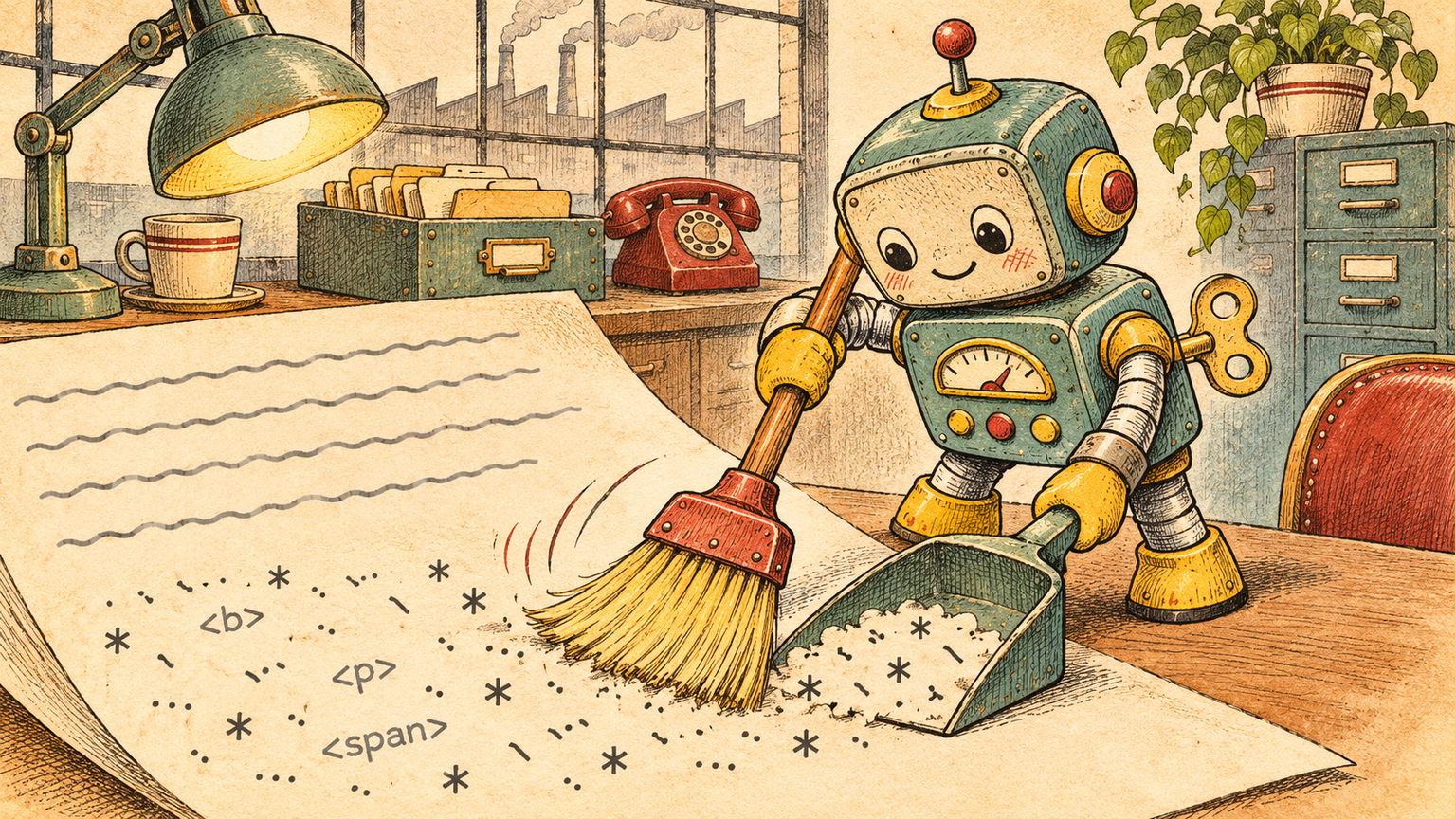
Output from ChatGPT, Claude, or Gemini: the AI Text Cleaner preset, because AI text combines markdown leftovers (asterisks, backticks) with hidden characters, and needs both layers cleaned at once.
Confidential text: any of the above, if the tool processes locally. Format Remover runs in your browser and uploads nothing; that is the property to check before pasting private text into any site.
FAQ
How do I unformat text I already copied and pasted?
Select the pasted text where it is and clear its formatting there: Ctrl + Space in Word, Ctrl + \ in Google Docs, or remove formatting in the destination app's menu. If the destination has no such command, re-copy the text through a format remover and paste the clean version over the mess.
Where is the remove formatting button?
In Word and PowerPoint it is on the Home tab of the ribbon, in the Font group, drawn as an eraser over the letters AA. In Google Docs there is no button; the command lives under Format > Text > Clear formatting. On Format Remover the whole job is the one Clean button above the input box.
Does removing formatting delete my content?
No. Formatting removal touches presentation only: fonts, colors, styles, markup, and hidden characters. The words, numbers, and punctuation you typed are never removed. The one genuine content risk is accidental: stripping a table or a list can make the layout of the information harder to read, which is why the duplicate-first habit matters.
What is the shortcut for paste without formatting?
In Chrome, Edge, Google Docs, and most Chromium-based editors, Ctrl + Shift + V (Cmd + Shift + V on Mac) pastes plain text. Across macOS system-wide, Option + Shift + Cmd + V is Paste and Match Style, which adapts the text to the destination instead of carrying its old look. Windows apps vary; Word users should set the Keep Text Only default described above.
Is it safe to paste confidential text into an online format remover?
It depends entirely on where the processing happens. Format Remover strips formatting with JavaScript running in your browser, so the text is never sent to a server, and the page even works offline once loaded. Before trusting any other site with sensitive text, check its privacy page for the same claim: processing happens locally, nothing is uploaded, nothing is stored.
How do I remove formatting on iPhone or Android?
Mobile apps rarely offer a plain-text paste command. The reliable route is the phone's browser: open the remover site, paste, clean, and copy. The tool works the same on a phone as on a desktop because all of the processing happens on the device.
Stripping formatting should take seconds, not a scavenger hunt through menus. For text from any source, Format Remover handles it in one paste, and for the stubborn invisible layer that comes with AI chatbot output, the AI Text Cleaner preset is already switched on when the page opens.