How to Remove AI Formatting from Text
Remove AI formatting from text in one paste: strip Markdown symbols, invisible characters and broken line breaks from ChatGPT, Claude and Gemini output.
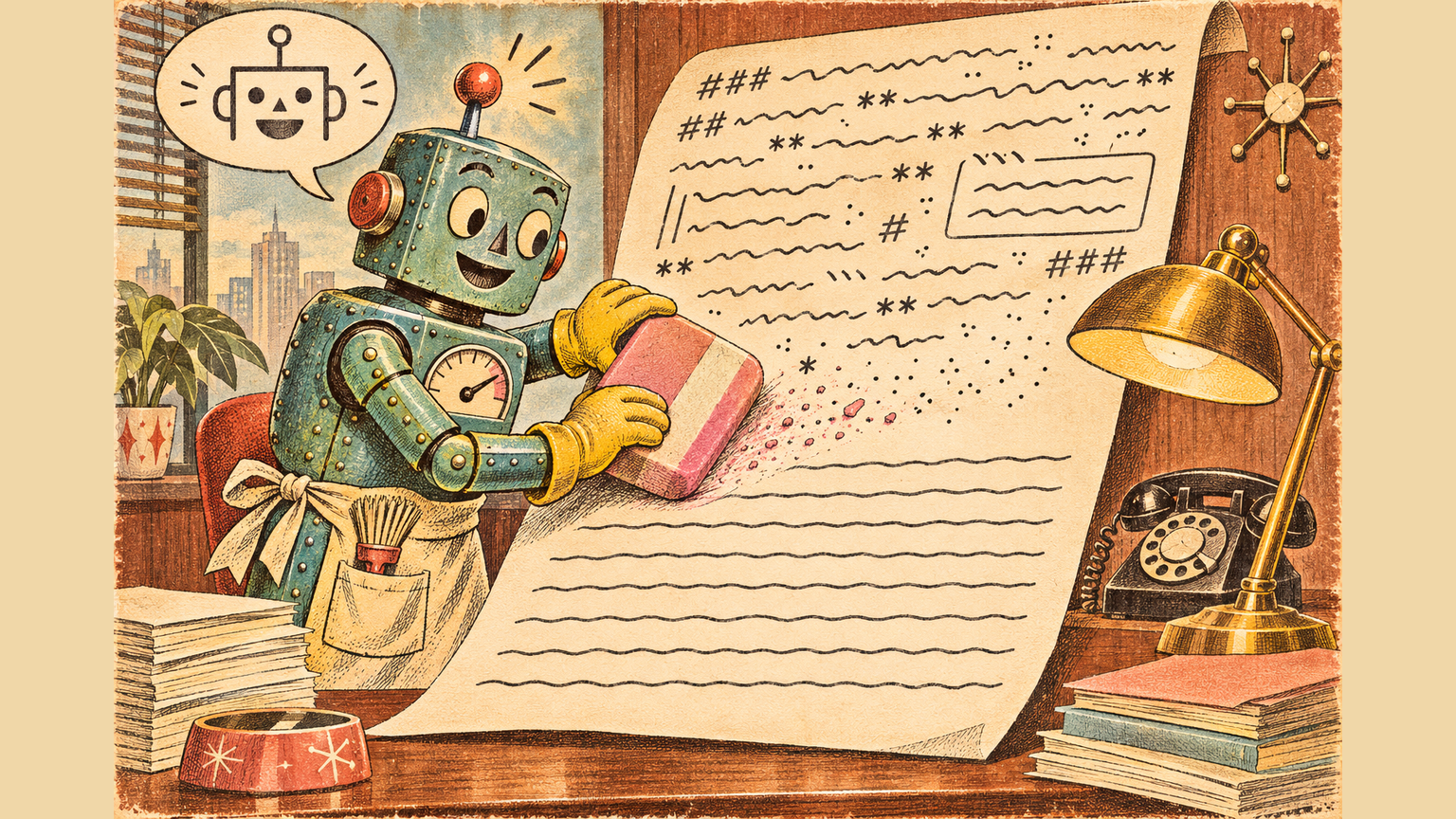
To remove AI formatting from text, paste the copied answer into a cleaner that strips the Markdown syntax and the hidden characters in one pass, then copy the plain result back out. The AI Text Cleaner opens with a preset built for exactly this job: paste output from ChatGPT, Claude or Gemini, and the asterisks, hash marks, zero-width characters and odd spacing come out while your paragraphs stay standing.
This guide covers what that formatting actually is (three separate layers, each breaking different things), the one-paste cleanup, the manual routes that need no tool, and a destination-by-destination damage report. It closes with the boundary most pages blur: removing AI formatting is cosmetic cleanup. It does not touch AI detection, and it says nothing about who wrote the text.
If your copy came from Word, Google Docs, email or a PDF instead of a chatbot, start with the general guide to removing formatting from text. Same browser-side toolbox, different symptoms.
What AI formatting actually is
Chat models compose their answers in Markdown and keep composing in it even when the interface never shows you a raw character. Copy an answer out and you carry up to three layers of junk into whatever comes next. Naming the layers matters, because each one fails differently and the quick fix most people reach for only touches the first.
The Markdown layer: symbols waiting for a renderer
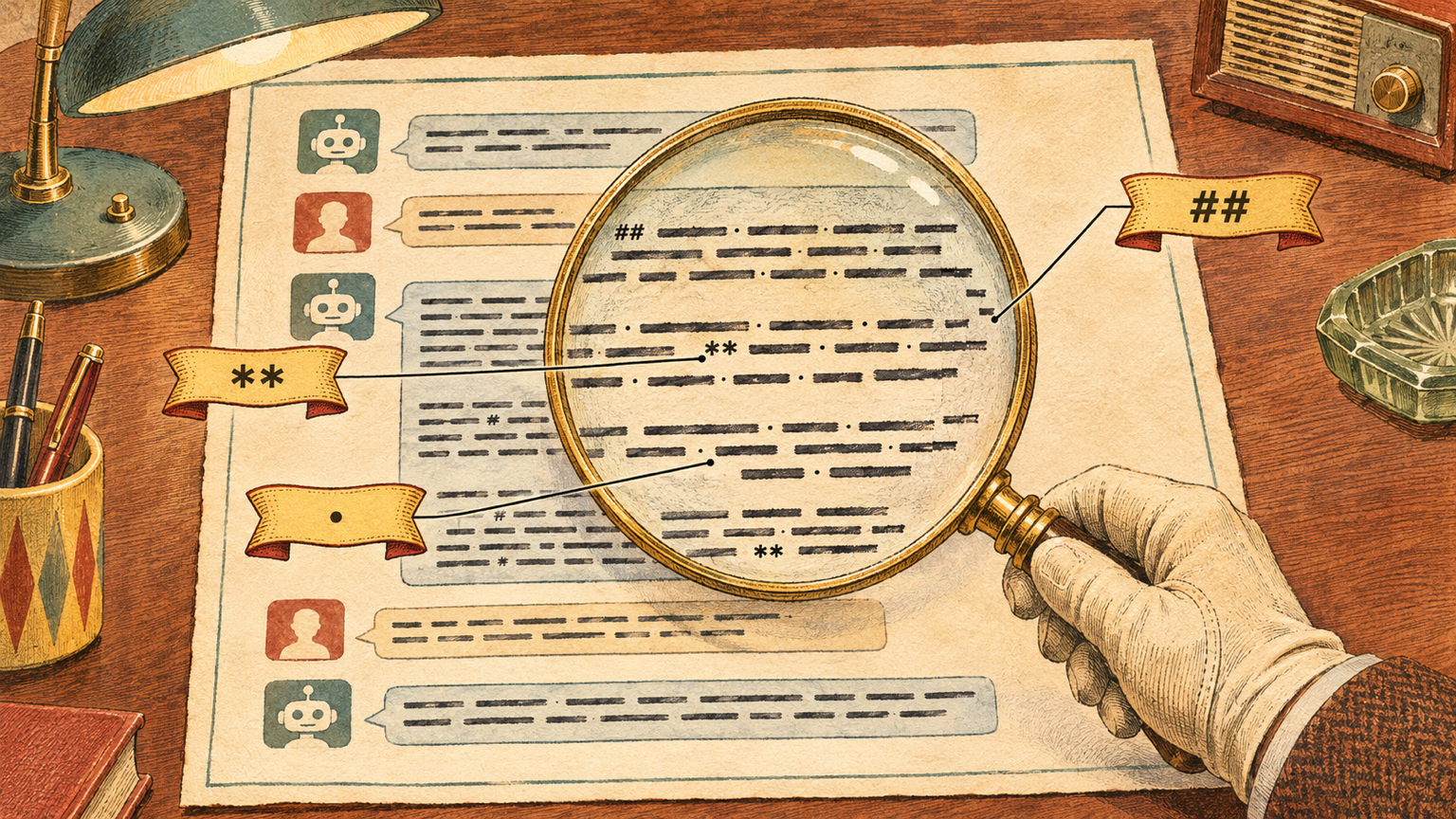
The chat window renders Markdown into real bold, real headings and tidy bullets. The characters stay in the text stream regardless, and the copy button hands you that raw source: **bold**, *italics*, ### headings, hyphen bullets, backticks around code, triple-backtick fences around whole blocks.
Paste that stream where no Markdown renderer lives (an email, a ticket system, a plain-text field in a CMS) and every decoration prints as literal punctuation. Paste the same stream into Notion or any Markdown-aware editor and it looks perfect. That split is this layer's signature: identical text, opposite results, depending on whether the destination speaks the dialect.
The invisible layer: characters you cannot see or select
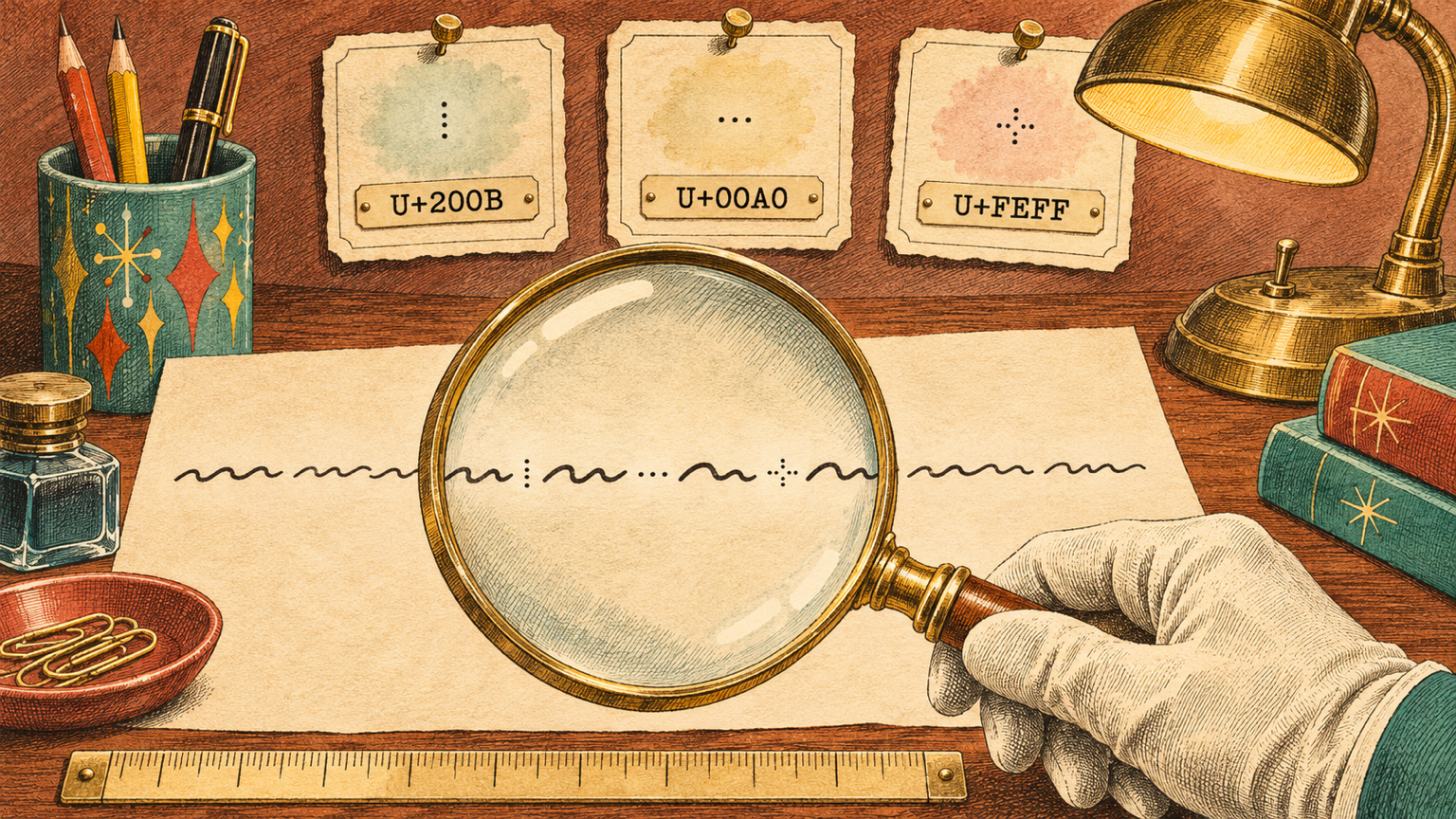
Layer two is smaller and meaner. AI output regularly carries characters that occupy space in the file and render as nothing:
- Non-breaking space (U+00A0): looks like a space, blocks line wrapping, defeats exact-match search.
- Zero-width space (U+200B): an invisible mark between words; find-and-replace misses words that are visibly there.
- Zero-width joiner and non-joiner (U+200D, U+200C): script-shaping controls that corrupt regex and keyword matching.
- Byte order mark (U+FEFF): surfaces as a garbage character at the start of a copied field.
- Soft hyphen (U+00AD): stays invisible until a line wraps at a random point mid-word.
Models emit these as artifacts of how they tokenize and compose text, and the chat interfaces pass them through untouched. No paste trick removes them, because to every application they are ordinary characters, not formatting. They are why a pasted phrase fails a search that should match, a spreadsheet lookup comes up empty, and a line wraps in the wrong place no matter what you delete.
The structure layer: breaks in the wrong places
Layer three is what happened to your paragraph shapes. Long answers often arrive with a hard break at the end of every visual line, so one paragraph reflows into a staircase of short lines. Blank gaps between paragraphs may collapse or double depending on the destination. Numbered steps usually survive, because a leading "1." is plain text rather than Markdown syntax; hyphen bullets are the fragile ones, since stripping the dash can weld it to the word that follows.
The fast way: remove AI formatting from text in one paste
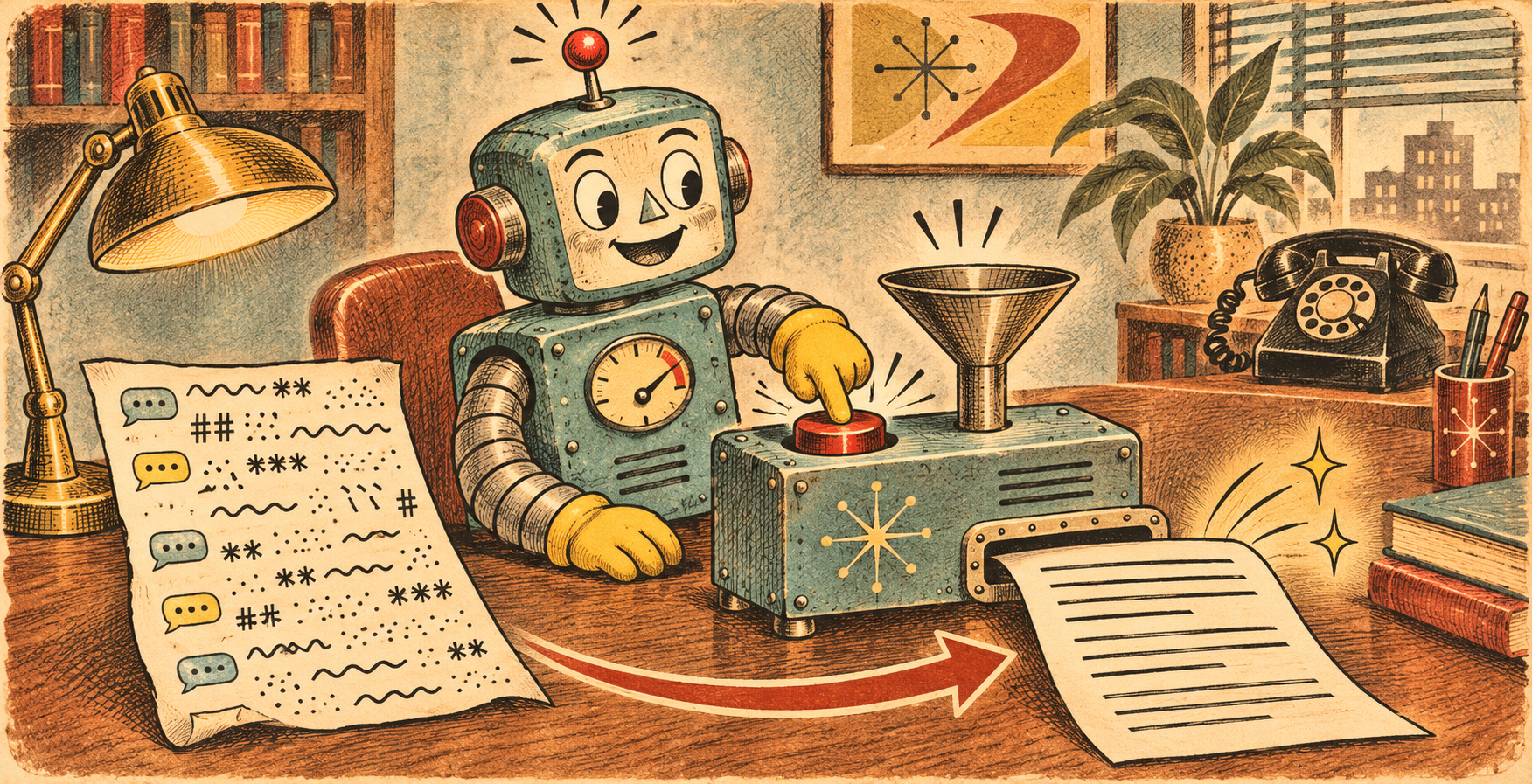
For text you are about to send somewhere, paste it into the AI Text Cleaner. The preset ships switched on: Markdown syntax strips out, zero-width and invisible control characters strip out, non-breaking spaces become normal spaces, homoglyph lookalikes (a Cyrillic letter hiding inside an English word) normalize, and curly quotes, ellipses and long dashes straighten. Line structure stays untouched, so a five-paragraph answer is still five paragraphs.
- Copy the answer out of your chat window.
- Paste it into the input box. Cleaning happens as the text lands; there is no button to hunt for.
- Open the Removed tab if you want to see exactly what left the text, character by character.
- Copy the clean result and paste it where it belongs.
Here is a real run on a typical chatbot answer, taken exactly as the copy button hands it over:
## **Weekly Team Update**
Here is a summary of what we shipped this week, plussome notes on what comes next:
- **Deployed** the new billing flow (see ticket #482)
- Fixed thesync bug in `user-profile.ts`
- Updated `README.md` with **setup steps**
### Next steps
1. Review the design mockups before Thursday
2. Ping *Sam* about the stagingcredentials
Let me know if you need more detail!
And the same text after one pass:
Weekly Team Update
Here is a summary of what we shipped this week, plus some notes on what comes next:
Deployed the new billing flow (see ticket #482)
Fixed the sync bug in user-profile.ts
Updated README.md with setup steps
Next steps
1. Review the design mockups before Thursday
2. Ping Sam about the staging credentials
Let me know if you need more detail!
Thirty-six characters left the text. The words did not change. In the before block, a zero-width space glues "plus" to "some" and "the" to "sync"; it is invisible on screen, and it is the reason those words fail a search after pasting. The preset pulled the glue out along with the Markdown decorations, and the numbered list kept its 1 and 2, because numerals are text, not syntax.
Two boundaries of the fast way, both good news. Nothing is uploaded: the cleaning runs in your browser, so confidential output stays on your machine, and the page keeps working offline once loaded. And the preset deliberately does not flatten paragraphs. When you do want one long line (CSV fields and record-per-line systems prefer it), the Line Break Remover has a single-line mode for exactly that.
Manual ways to clean AI text without a tool
Sometimes a tool is out of reach: a locked-down work machine, three lines of text, a form field that needs one fix. Three routes cover it, each with a catch worth knowing before you start.
Ask the model for plain text
Ask before the answer: "Reply in plain text only. No Markdown, no bold, no bullet points." Ask after the fact to remove Markdown from AI text it just wrote: "Strip the Markdown from your last answer, keep the wording."
It works, partly. Short replies come back clean. Long ones drift back into headings and bullets within a few paragraphs, because that is how these models structure anything longer than a note, so a spot check is still required. Watch the asymmetry too: a re-answer rewrites the text, which means you are now proofreading a new generation rather than the one you already read, while a strip-the-Markdown pass keeps the wording but may leave stray symbols. Neither route touches the invisible layer at all. The model cannot see its own zero-width characters any better than your text editor can.
Paste as plain text
Destinations that accept rich pastes usually carry an escape hatch:
- Word: after pasting, open the clipboard chip and pick Keep Text Only. To make it stick, set it as the default under File > Options > Advanced > Cut, copy and paste.
- Google Docs, Chrome and most Chromium editors: Ctrl + Shift + V (Cmd + Shift + V on a Mac) pastes without formatting.
- In the chat window itself: skip the copy button and select the rendered text with your cursor. The button ships raw Markdown source; a manual selection copies what you see, which lands in Word or an email much closer to right.
A long thread on the OpenAI community forum about ChatGPT pastes wrecking Word justification settled on exactly this combination: manual selection, then paste as plain text. What it cannot do is reach the invisible layer or symbols already inside the text stream; both survive a plain-text paste untouched, which is why it pairs well with a cleanup pass.
Hunt the invisible characters by hand
For proof of what is hiding in a paste, go character hunting:
- Word: Home > Replace > More > Special finds the non-breaking space directly. For the rest, type caret codes into the Find box with Replace left empty:
^u160(non-breaking space),^u8203(zero-width space),^u65279(byte order mark),^u173(soft hyphen). - Code editors: one regex clears the whole family at once:
[\u200B\u200C\u200D\uFEFF\u00AD]replaced with nothing.
It works, it is slow, and it only catches the characters you thought to look for. Homoglyphs defeat the hunt entirely: a lookalike letter inside an English word has a visible shape, passes every invisible-character filter, and still breaks searches.
Where AI formatting does the most damage
The three layers do not matter equally everywhere. The damage follows the destination:
- Email: raw Markdown prints as punctuation, and non-breaking spaces stop lines wrapping mid-paragraph. Blame the Markdown and invisible layers.
- Word and Google Docs: justification and spacing go wrong, and Clear formatting leaves hidden characters standing. Blame structure and invisible.
- CMS and web forms: asterisks and hashes show to readers, and zero-width marks poison the site's search index. Blame Markdown and invisible.
- Code editors and JSON: curly quotes and long dashes break string literals, and invisible marks corrupt parsers. Blame punctuation and invisible.
- Spreadsheets: non-breaking spaces defeat TRIM and lookups, and a byte-order mark prefixes the first cell. Blame the invisible layer.
The habit that prevents most of this: clean ChatGPT formatting before the paste, not after the damage report. And when a paste behaves haunted (searches miss, wraps break, parsers choke), stop re-pasting and run the text through a cleaner once. The destination guides go deeper: the Word formatting cleaner and the Gmail formatting cleaner each open with the preset their destination needs.
What removing AI formatting does not do
This topic collects myths fast, so here is the boundary in plain terms. Removing AI formatting from text only strips symbols and characters; it does not rewrite anything, and it knows nothing about the text's origin.
- It is not a detector bypass. AI detectors read statistical patterns in word choice and sentence rhythm. Stripping asterisks and zero-width marks changes the surface of a text, not those patterns, so no formatting cleaner is a reliable way to change a detector's verdict, and one sold on that promise is overselling. If a piece of writing needs an AI-assistance disclosure, cleaning the formatting does not replace the disclosure.
- It is not authorship judgment. A human-typed draft full of Markdown is still human; a scrubbed AI answer is still machine-drafted. Judge provenance by how the text was produced, not by whether its punctuation is tidy.
- It is not watermark extraction. Some tool pages describe the invisible characters in AI output as hidden watermarks. What ships in practice is stray Unicode from tokenization and composition, not a tracking code with a decoder. Removing it is ordinary hygiene, not counter-surveillance.
- It does not check facts. A cleaned wrong answer is still a wrong answer. Verify anything load-bearing before you send it onward.
What it does do is smaller and real: the paste stops fighting its destination. Words render as words, search finds what is written, spreadsheets look up what they should, and nobody downstream inherits a haystack of marks they cannot see.
FAQ
Does asking ChatGPT for plain text actually work?
For the first few paragraphs, usually. On longer answers the model drifts back into Markdown, so spot-check the reply. The invisible layer never comes out this way, because the model cannot see those characters either.
Why does the copy button give me Markdown when the screen shows bold?
The interface stores every answer as Markdown source and renders it for display. The copy button copies the stored source; your eyes get the rendering. Select the text manually instead of using the button, and what you copy lands much closer to what you see.
Are the invisible characters in AI text a watermark?
No. The invisible characters that actually appear in output (zero-width marks, non-breaking spaces, byte-order marks) are artifacts of how the model composes text, and no decoder exists for them. Removing them is paste hygiene, nothing more.
Does removing formatting change my words or word count?
The words stay. What leaves is everything that was never a word: asterisks, hashes, backticks, hidden marks. A character count drops while the word count barely moves. Two visible shifts to check afterwards: curly quotes have become straight ones, and stripped hyphen bullets no longer lead their lines.
Is it safe to paste confidential AI output into an online cleaner?
It depends entirely on where the processing runs. AI Text Cleaner cleans with JavaScript in your browser: the text is never uploaded, and the page works offline once loaded. Before trusting any other site with sensitive text, check for the same claim stated plainly.
How do I remove AI formatting on a phone?
Open the cleaner in your phone's browser, paste, copy out. The processing happens on the device, so the flow is identical to desktop, and it works on the output of the mobile chat apps the same way.
AI formatting runs three layers deep. Cleaning AI output should still take one paste: run your next ChatGPT, Claude or Gemini answer through the AI Text Cleaner, and for everything that is not chatbot output, Format Remover strips the fonts, spans and hidden characters the rest of the copy-paste world throws at you, in the same browser-side way.